


Copy My Data: Phone Transfer
0.00.00 Reviews
App Specs
- Version
- 4.5.7
- Updated On
- License
- Free
- Downloads
- 5,000,000+
- Developer
- Technoline Apps
- Categories
- Tools
- Platform
- Android, iOS
Screenshots
 Analysis by AppCompare
When it comes to transferring data between phones, I want the process to be clear and controlled, not a new source of stress. Copy My Data: Phone Transfer is aimed at moving useful personal items from one device to another, and its appeal is easy to understand: it focuses on everyday data rather than asking me to rebuild everything by hand. I’d consider it when contacts, calendars, photos, or videos are the priority, while keeping in mind that a phone transfer is rarely a perfect copy of an old device.
What I would check before choosing a transfer method
Before starting, I’d make a quick list of what actually needs to come across. Contacts and calendar entries can be easy to overlook until the new phone is already in use; photos and videos may take more planning because they can represent a large share of what matters. Separating essentials from files I can leave behind helps me decide whether a focused transfer tool is enough or whether I need a broader migration route.
I’d also check both phones before beginning: make sure each is charged, connect them to the same Wi-Fi network, and avoid starting while I’m about to leave home or need either device. That preparation is less about technical fuss and more about giving the transfer a stable window. If the connection drops or I have to interrupt the process, I can deal with it calmly rather than in the middle of a busy day.
The app is a free tools app from Technoline Apps, with in-app purchases listed from $6.99 to $49.99 per item. It is rated for Everyone, has over five million installs, and its current version is 4.5.0; it runs on Android 6.0 and later. Those details make it accessible to many Android users, but they do not change the practical question: does its focus on selected personal data match what I need to move?
Getting Started with Ease
Setting up Copy My Data is straightforward. You’ll find it on both Android and iOS, and it's free to download. Once you’ve got it installed, the app guides you through the process with a friendly, step-by-step tutorial. Whether you're swapping from Android to iOS or vice versa, this app’s got your back. It's like having a tech-savvy friend in your pocket.
Transferring Data: Simple and Swift
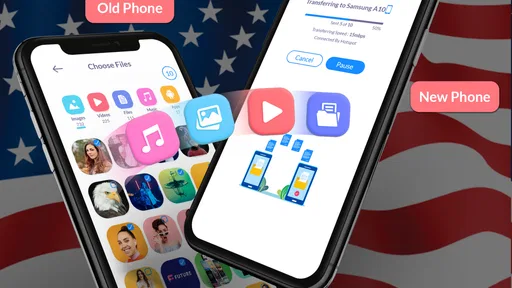
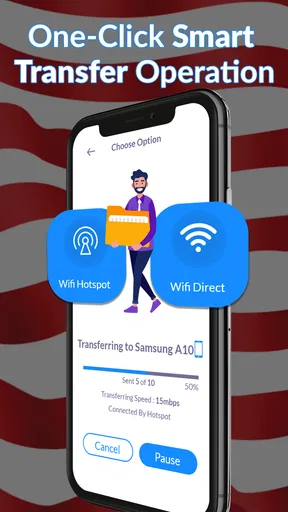
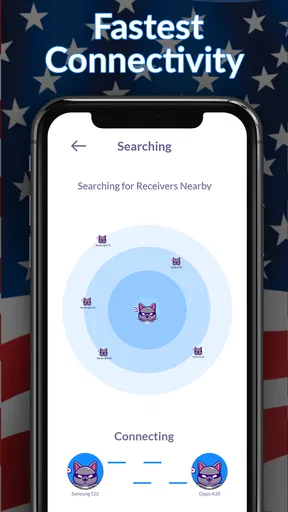
Now, onto the main event: transferring your data. The app uses your Wi-Fi connection, which means you’re not relying on cables or cloud storage. This is a huge relief because, let’s be real, who has the patience for tangled wires?
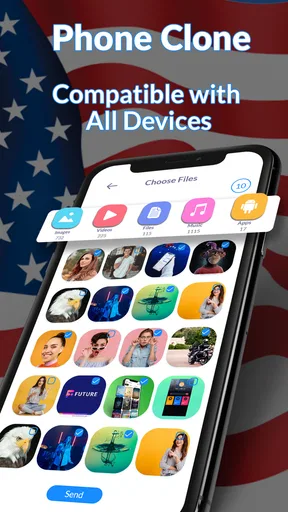
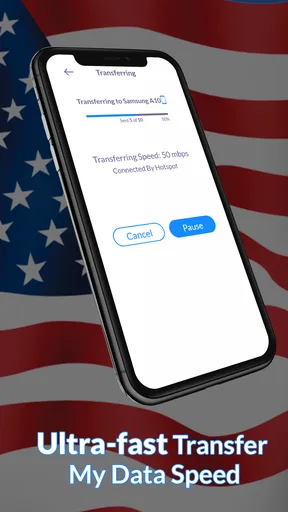
Once both devices are on the same Wi-Fi network, you can select what you want to transfer. Contacts, photos, videos, and calendars are all on the menu. Simply choose your items, and let the app work its magic. The transfer speed is pretty impressive; I found that even large batches of photos moved across without a hitch.
Worth Reading Before You Choose

EA SPORTS FC Mobile 26 Is a Bigger Football Game, but It Takes Time

Flipboard Shows What News Apps Must Do Beyond the Feed

Switching to Android Auto Means Rethinking Your Driving Routine

Google Calendar Makes a Crowded Week Easier to Manage

Ludo King Makes the Most of the Minutes Between Plans

Baby Panda World Brings Quick Play to Modern Phones, but Its Game Library Feels Busy
That item-by-item choice is useful for more than tidiness. If I’m lending someone a spare phone or moving to a device I’ll share with family, I can avoid treating a transfer as an all-or-nothing clone. I’d choose only the categories I intend to carry over, then check the destination phone before erasing or trading in the old one. Keeping the old device untouched until I’ve verified the essentials is a simple safeguard against discovering later that an important contact or album didn’t arrive as expected.
A practical move, not a complete phone clone
A realistic use case is an upgrade at home: I have both phones nearby, a reliable Wi-Fi connection, and enough time to choose what I want to bring across. I can prioritize contacts and calendar entries first, then handle photos and videos as a separate decision. That makes the transfer easier to reason about than trying to move every part of the old phone in one rushed session.
It is also a reasonable option when I want to share selected personal data between devices without setting up a cloud account just for that task. The trade-off is that both phones need the app and a shared network, so this is not the most convenient choice if one device is unavailable or I’m trying to work entirely offline. I would postpone the move rather than start on an unstable connection and assume everything will finish correctly.
For a smoother handoff, I’d first remove obvious clutter from the source phone only if I’m certain I no longer need it, and I’d avoid doing that until the new phone has been checked. Afterward, I’d open several transferred items on the destination device rather than relying only on a completion message. A few spot checks—one recent photo, an older image, a calendar entry, and a contact—can reveal whether the data I care about is actually usable.
User Interface: Friendly and Functional
The user interface of Copy My Data is refreshingly simple. There’s no unnecessary clutter, which means you can get straight to the task at hand. The buttons are big and bold, and the instructions are clear and concise. It feels like the app is holding your hand through the entire process, and honestly, I'm here for it.
That simplicity is especially helpful if I’m setting up a relative’s phone and don’t want to explain a complicated sequence of menus. I can work through the visible prompts together with them and make the choices explicit. Still, a friendly interface should not be mistaken for a guarantee that every kind of information will transfer. I’d treat the selected categories as the scope of the job, then make a separate plan for anything outside them.
Compatibility and Limitations
One thing to note is that while the app is great for most data types, it doesn’t cover everything. For instance, apps, app data, and music won’t make the journey with you. However, for the essentials, it does a stellar job.
Also, keep in mind that both devices need to have the app installed and be connected to the same network. If you’re having trouble connecting, it might be worth checking your Wi-Fi settings or restarting your devices.
This is where I’d compare it with the usual alternatives. A phone maker’s own migration process may be the better first choice when I want a wider device setup, especially if I’m moving within one brand and want to follow its built-in setup flow. Cloud backup suits someone who already relies on an account-based backup and wants a continuing copy of data, but it depends on that person’s existing setup and connection. A cable-based method can make more sense when Wi-Fi is unreliable. This app’s niche is narrower: select personal categories for a direct phone-to-phone move, without making it a substitute for a full device backup.
That distinction matters for messages, app logins, saved game progress, downloaded music, and settings. I would not assume those will appear on the new phone just because contacts and photos did. Before switching, I’d make sure I can sign in to important accounts and know how to reinstall essential apps. If app-specific information matters, I’d check that app’s own backup or export options instead of expecting a general transfer tool to handle it.
Another useful trade-off is control versus completeness. Choosing categories helps avoid carrying over things I don’t want, but it also means I have to think ahead about what belongs in each category and what needs another method. If my goal is an exact duplicate of the old phone, I’d choose a migration option designed for that broader job. If my goal is simply to bring a few core personal items across, a focused approach can be easier to manage.
Planning the switch without losing track
I’d treat the old phone as the safety net until the new one is ready for everyday use. After the transfer, I’d confirm that contacts appear in the expected place, check that calendar entries are visible, and open a handful of photos and videos. Then I’d test the new phone’s important accounts and communication apps separately. This avoids confusing a successful transfer of selected data with a complete setup of the device.
If I’m switching between Android and iOS, I’d be particularly careful to distinguish personal files from information tied to an operating system or an individual app. The app’s cross-platform role can help with the types of data it supports, but it does not remove the need to set up platform-specific services on the new phone. I’d plan for that extra step rather than discovering it while trying to use the phone away from home.
For a large personal photo collection, I’d also think about timing. A calm session at home is better than starting just before work, a trip, or a phone handover. I would keep both devices accessible and avoid deleting anything from the source until I have had a chance to inspect the destination. That small amount of discipline matters more than trying to make the transfer feel instant.
Who should choose another route
I would skip this as my only migration plan if I need apps, app data, or music to move along with my contacts and media. It is also a poor fit when I cannot put both phones on the same Wi-Fi network or need to begin the handoff immediately without preparing the devices. In those situations, the phone maker’s setup process, an existing backup, or another method suited to the missing data is a more sensible place to start.
Someone who only needs to move a small number of contacts might find that manually syncing them through an account already in use is simpler. On the other hand, a person with selected photos, videos, calendars, and contacts to move together may appreciate having those choices in one guided process. The right call depends less on the label “phone clone” and more on whether the app’s supported scope matches the job.
The app is free to download, but its in-app purchases are worth noticing before making a decision. I’d begin by checking whether the available transfer process covers my needs rather than assuming that every option is included at no cost. If I’m comfortable with the basic task and want a straightforward route, that may be enough; if I’m looking for a comprehensive migration service, I’d compare the total process and any purchase prompt with alternatives before committing.
Final Thoughts: A Handy Tool
In conclusion, Copy My Data: Phone Transfer is a nifty tool that takes the headache out of switching phones. While it doesn’t handle every type of data, it excels with the essentials like contacts and photos. The app is user-friendly, quick, and reliable – pretty much everything you’d want in a data transfer app.
If you’re gearing up for a phone upgrade or just need to move stuff between devices, this app is definitely worth a shot. It might not do everything, but what it does, it does well. And hey, anything that makes life a little easier is a win in my book.
My recommendation is straightforward: use it when you want a guided way to move supported personal data between two phones that can share Wi-Fi, and give yourself time to verify the result. Keep a separate plan for apps, app data, music, and any other parts of the phone you need to preserve. With that expectation, it can make a modest but useful part of changing phones feel much less intimidating.
Pros
- Simple interface
- easy to navigate
- Fast data transfer between devices
- Supports various data types
- No need for internet connection
- Cross-platform compatibility
Cons
- Limited to basic data types
- Occasional connection issues
- No advanced customization options
- Not ideal for large data volumes
- Requires both devices to be nearby
FAQs for Copy My Data: Phone Transfer
What is Copy My Data: Phone Transfer and how does it work?
Copy My Data: Phone Transfer is an app designed to facilitate the easy transfer of data between smartphones. It works by connecting two devices over the same Wi-Fi network, allowing users to move contacts, photos, calendar events, and more without the need for cables or cloud services. Simply install the app on both devices and follow the on-screen instructions to start transferring your data.
Is Copy My Data: Phone Transfer secure to use?
Yes, Copy My Data: Phone Transfer is secure. The app transfers data directly between your devices over a local Wi-Fi connection, ensuring that your information is not stored or transmitted through external servers. However, it's important to ensure you're connected to a secure and private Wi-Fi network to protect your data from unauthorized access.
Does Copy My Data: Phone Transfer support all types of data?
Copy My Data: Phone Transfer supports a range of data types, including contacts, photos, calendar entries, and videos. However, it may not support all file types or app-specific data. It’s advisable to check the app’s compatibility with the specific data types you wish to transfer to ensure a smooth transition.
Can I use Copy My Data: Phone Transfer across different operating systems?
Yes, Copy My Data: Phone Transfer supports data transfer between Android and iOS devices. This cross-platform functionality makes it a versatile tool for users switching from Android to iOS or vice versa. Ensure both devices have the app installed and are connected to the same Wi-Fi network to facilitate the transfer.
What are some common issues users might face with Copy My Data: Phone Transfer and how can they be resolved?
Common issues include connectivity problems or incomplete transfers. To resolve these, ensure both devices are on the same Wi-Fi network and have the latest version of the app installed. Restarting the app or the devices can also help. If problems persist, checking the app’s official support resources or forums for troubleshooting tips is recommended.


